

Weidmüller u-control 2000 (UC20)
The Weidmüller u-control 2000 controllers run logiccloud Control in a Docker container. Alongside the runtime they can configure a UR20 IO station and exchange data with the u-OS Data Hub.
Supported devices
Section titled “Supported devices”| Device | Architecture | Memory | Cores |
|---|---|---|---|
| UC20-M3000 | ARM 64 | 1 GB | 2 |
| UC20-M4000 | ARM 64 | 2 GB | 4 |
| UC20-WL2000 | ARM 32 | 1 GB | 2 |
Select your exact device type when you create the device in the logiccloud IDE — the services installed on it depend on the architecture.
Device processes
Section titled “Device processes”Three services can run on a UC20 beside the runtime. Only the first is installed automatically; the other two you enable yourself under Edit device processes.
| Service | Enabled | What it does |
|---|---|---|
| Weidmüller license service | Always | Handles licensing on the device. |
| Debugging service | Optional | Lets you debug the running program online from the IDE. |
| Weidmüller device management service | Optional | Reads and writes the IO station — the Device Editor needs it. |
Install logiccloud Control
Section titled “Install logiccloud Control”On u-OS, logiccloud Control is installed as a device application rather than
with a docker run command. You deploy the application, open it on the device,
and connect it to your account with a device token.
1. Install the application on the device
Section titled “1. Install the application on the device”In the device’s u-OS Control Center, open Apps → App manager and press Install app.
If the device has no internet access, use Apps → Offline installation instead and supply the application bundle.
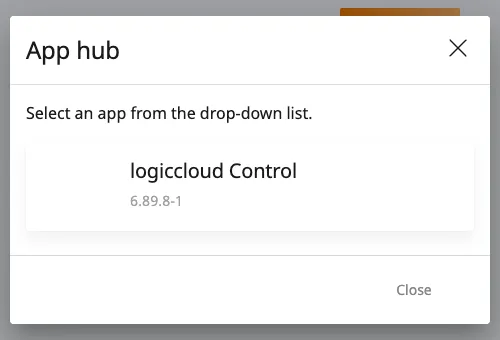
Select the app. The App hub lists what is available. Choose logiccloud Control; the version it will install is shown beneath the name.
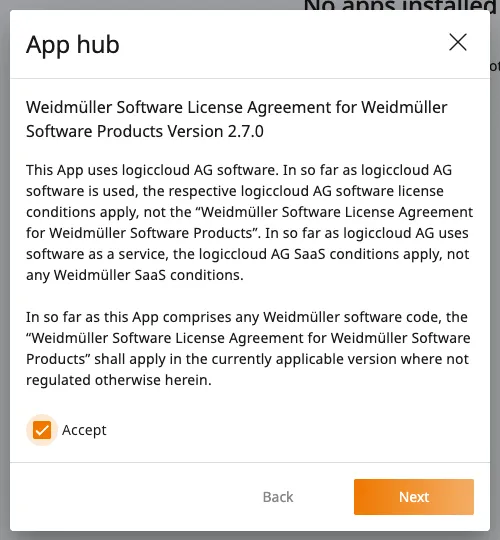
Accept the licence. Tick Accept to enable Next.
Confirm the app and version, then press Next again.
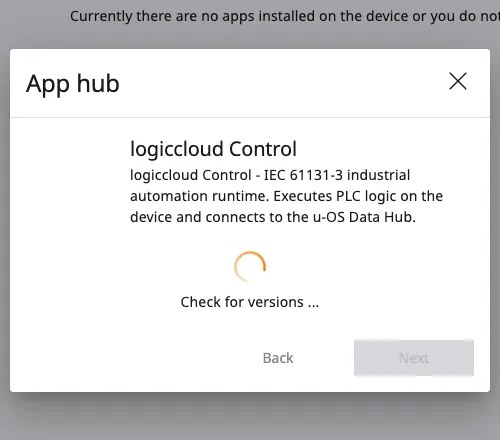
u-OS checks for settings and offers Install. The app shows Installing … while it works.
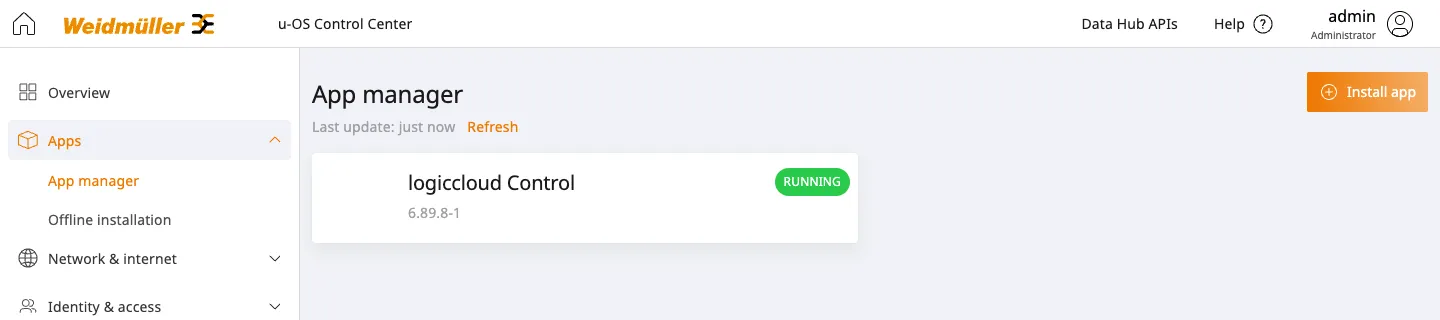
When it finishes, the App manager lists the app with its version and the state RUNNING. It also appears under Apps on the u-OS home page.
2. Open the application on the device
Section titled “2. Open the application on the device”Browse to the application on the device:
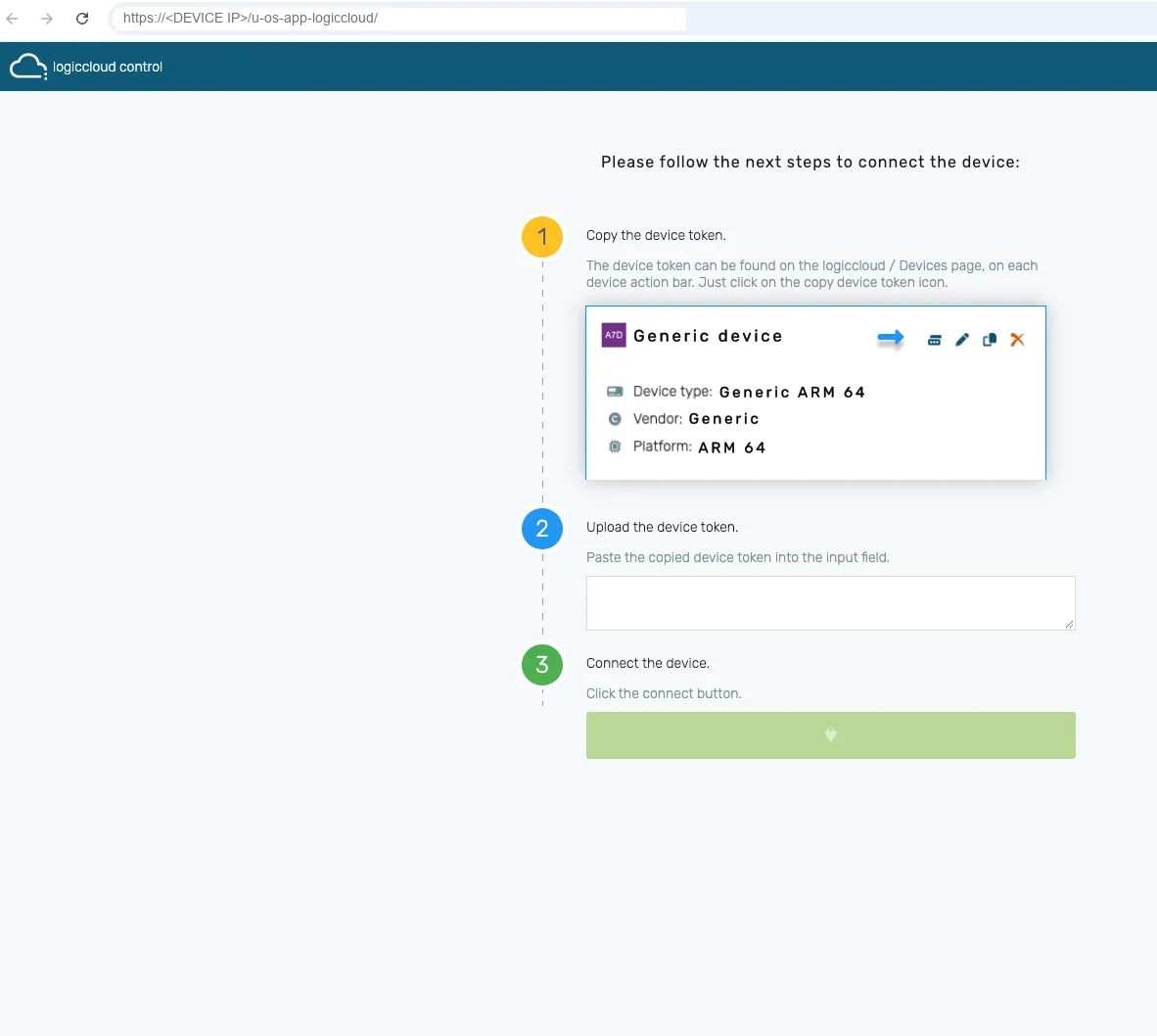
https://<DEVICE IP>/u-os-app-logiccloud/It opens on a three-step page, Please follow the next steps to connect the device.
3. Create the device in the logiccloud IDE
Section titled “3. Create the device in the logiccloud IDE”In the IDE, open Devices and create the device:
| Field | Value |
|---|---|
| Device vendor | Weidmüller |
| Device type | UC20-M3000, UC20-M4000 or UC20-WL2000 |
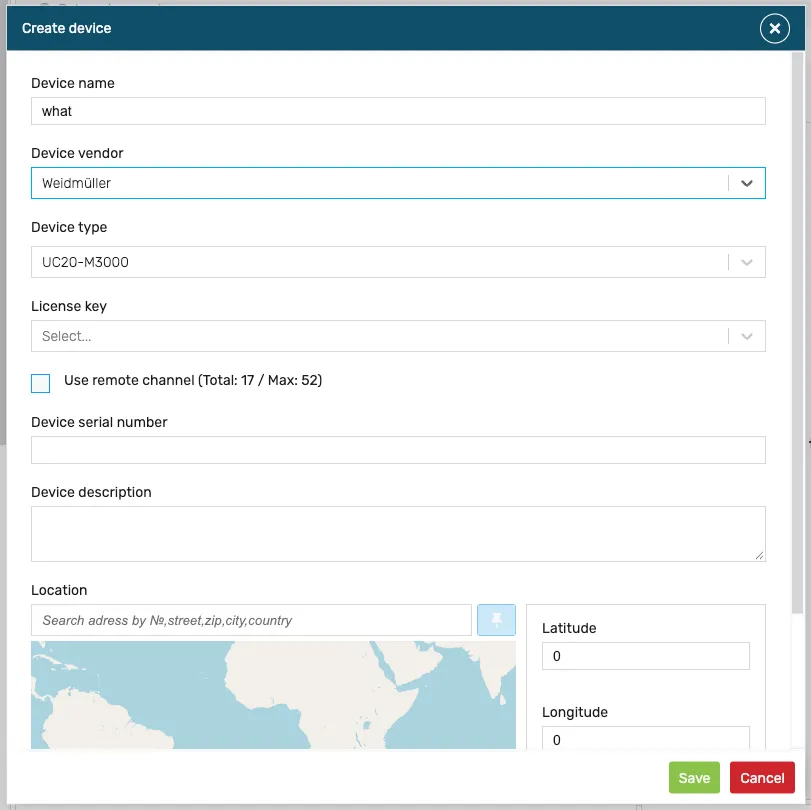
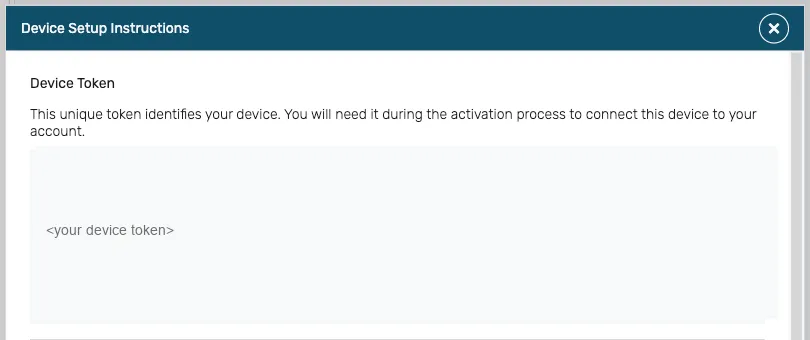
Then copy its device token: the Devices page shows a copy-token icon in each device’s action bar.
4. Connect the device
Section titled “4. Connect the device”Back in the application on the device, paste the token into Upload the device token and press the connect button. The header then shows Connected.
5. Install and start the runtime
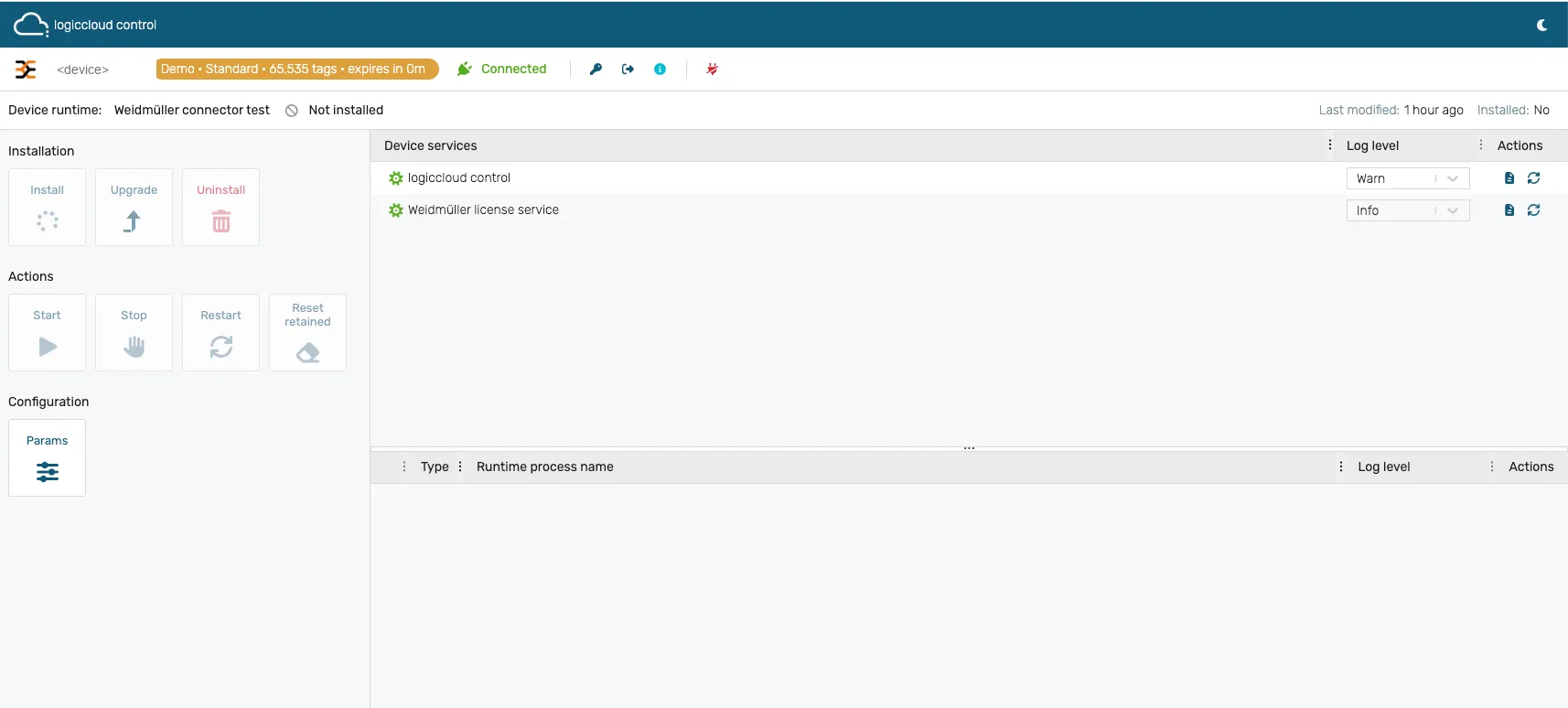
Section titled “5. Install and start the runtime”The application now shows the device runtime, initially Not installed. Use the Installation panel to Install it, then Start it from the Actions panel.
The same panels later provide Upgrade, Uninstall, Stop, Restart and Reset retained, and Params under Configuration.
Checking what runs on the device
Section titled “Checking what runs on the device”The Device services list shows each service with its own log level. A freshly connected device lists logiccloud control and the Weidmüller license service only — the debugging and device management services are optional and are not enabled by default. See Device processes above.
What you can do with a UC20
Section titled “What you can do with a UC20”- Configure the IO station — build the UR20 module layout, send it to the device and read back what it reports. See Weidmüller Device Editor.
- Exchange data with the u-OS Data Hub — publish PLC variables to the hub and subscribe to hub variables. See Weidmüller u-OS Data Hub.